
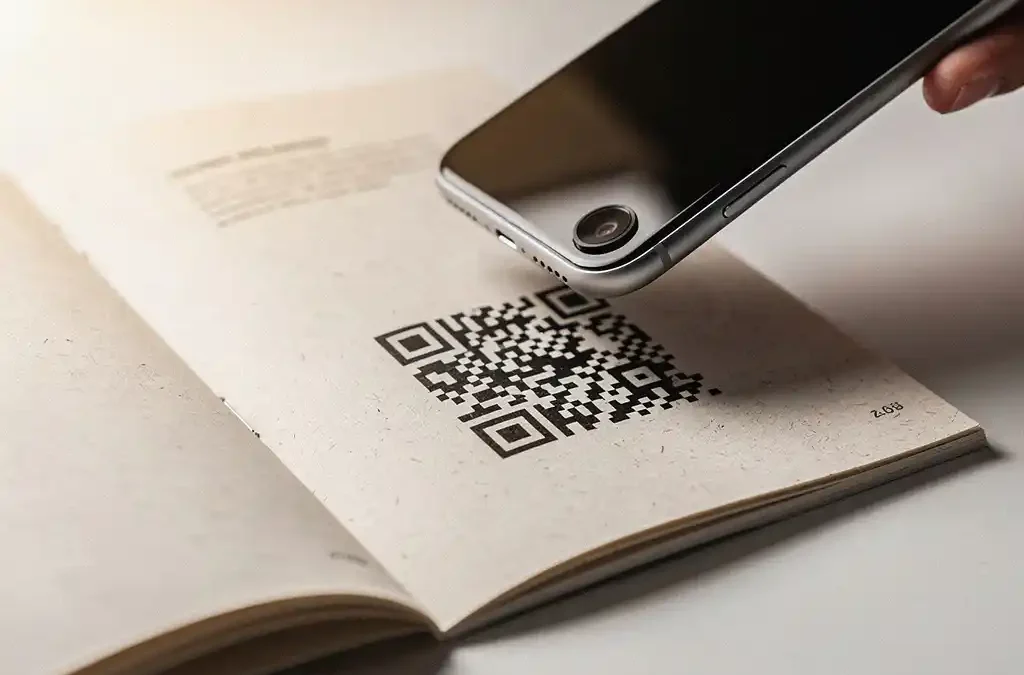
Integrating QR codes into printed product documentation involves generating a QR code that links to digital content, placing it in a logical location within the document, and ensuring the destination remains accessible and up to date after printing. This applies to user manuals, installation guides, product sheets, and packaging. If you have questions about how we can support this in your documentation projects, feel free to get in touch with us. The sections below answer the most frequently asked questions about the practical use of QR codes in printed documentation.
What types of content can you link to a QR code in product documentation?
A QR code in product documentation can link to virtually any type of digital content: instructional videos, comprehensive user manuals, software downloads, registration forms, technical specifications, FAQ pages, or support portals. The right choice depends on what the user needs at that specific moment in their product experience.
A QR code on a quick-start guide ideally links to a video that walks through the installation process step by step. A code on a safety label can lead to a detailed safety data sheet that is too extensive to print in full. On warranty cards, a direct link to a registration form works well. The principle is always the same: the printed page delivers the core message, and the QR code deepens or extends that message digitally.
Consider less obvious applications as well, such as links to spare parts lists, technical support contact forms, or the latest software updates. As long as the linked content offers genuine value to the reader, a QR code significantly enhances the usability of your printed documentation.
What is the difference between static and dynamic QR codes for documentation?
A static QR code contains a fixed URL encoded directly into the code itself, which cannot be changed after printing. A dynamic QR code points to an intermediate redirect URL, allowing you to update the destination at any time without reprinting the code. For product documentation, dynamic codes are almost always the better choice.
Static QR codes: simple but inflexible
Static codes are free to generate and require no management service. They are suitable for content that never changes, such as a permanent product page or an archived version of a manual. The drawback is clear: once the URL changes or the page goes offline, the code leads nowhere and there is no way to fix it without reprinting.
Dynamic QR codes: flexible and measurable
Dynamic codes offer two major advantages. First, you can update the destination URL at any time through a management dashboard. If a manual is revised or a video is replaced, you do not need to reprint the documentation. Second, most dynamic QR services provide scan analytics, so you can see how often and where a code is being scanned. This makes dynamic codes particularly valuable for product documentation with a longer lifespan.
Where should you place a QR code in a printed document for the best results?
Place a QR code where the user would naturally expect a logical next step: at the end of an instruction step, next to a complex diagram, on the cover or back page, or alongside a reference to additional information. Visibility and context are the two most important criteria.
A code buried in a footnote or too small to notice will rarely be scanned. Make sure there is enough white space around the code and always include a short call to action, such as “Scan for the installation video” or “View the full manual online.” This tells users what to expect before they reach for their phone.
For multi-page documents, a good rule of thumb is to place a QR code where the digital content most effectively complements the printed information. Placing the code on the front or back of packaging reaches users before or right after purchase. Placing it on a specific page in a manual reaches the user at exactly the moment when additional guidance is most useful.
How do you ensure a QR code remains scannable after printing?
A QR code will remain scannable after printing if you meet four technical requirements: a sufficient minimum size, high contrast between the code and its background, an error correction level of at least 15 percent, and a print resolution of at least 300 dpi. In addition, the destination must remain accessible online for as long as the document is in circulation.
The minimum recommended size for a QR code in print is approximately 2 by 2 centimeters. Smaller than that increases the risk of scan errors, especially on coated paper or with certain printing processes. Always use black on white or another high-contrast combination; avoid placing a code on a busy background or in a color that does not stand out sufficiently.
Error correction is a built-in feature of QR codes that determines how much of the code can be damaged or obscured while still being scannable. Level M (15 percent) is a solid standard for print. If you want to embed a logo in the code, use level H (30 percent) to compensate for the covered area.
Always test the code on multiple devices and with different QR scanner apps before printing. With our print services, we work with the DTP team to verify that codes are correctly embedded in the print-ready file, so there are no surprises after printing.
How do you link QR codes to multilingual documentation?
For multilingual documentation, you can either assign each language version its own QR code pointing to the corresponding language version of the digital content, or use a smart redirect that automatically detects the language based on the user’s device settings.
The simplest approach is one QR code per language version of the document. A Dutch-language manual contains a code linking to the Dutch online version, the German manual contains a code for the German version, and so on. This requires good file organization but is completely transparent to the user.
An alternative is a dynamic code with language detection. The code points to a landing page that automatically reads the device’s language setting and redirects the user to the appropriate language version. This works well when you create a single universal document for multiple markets, but it requires all language versions to be available online and the detection logic to be properly configured.
When working with documentation in more than 90 languages, consistency in naming conventions and URL structure for destination pages is essential. Document this in a documentation matrix before you begin printing, so that every code points to the correct version and updates can be implemented with ease.
What tools do you use to generate and manage QR codes in documentation projects?
For documentation projects, it is best to use a QR code management platform that supports dynamic codes, provides scan analytics, and integrates easily into existing workflows. Popular options include QR Code Generator Pro, Bitly, Beaconstac, and Adobe Express, each offering different levels of management and analytics.
For smaller projects with static codes, free tools such as QR Code Monkey or the built-in QR function in Adobe InDesign are sufficient. InDesign generates QR codes directly as vector images, which is ideal for print-ready files because the code remains sharp at any print size.
For larger or ongoing projects — where codes need to be updated regularly or multiple language versions need to be managed — a paid platform with a central dashboard is the smartest choice. It allows you to manage all codes in one place, update destination URLs without reprinting, and track scan performance by market or language version.
For every project, record which tool was used, which URL is linked to which code, and who is responsible for managing the destination pages. Without that documentation, you risk codes becoming dead ends after a website update or reorganization, while the printed materials remain in circulation for years.
Need help integrating QR codes into your printed product documentation, from design through to print? Contact us and we will be happy to think through the best approach for your project.
Frequently Asked Questions
How long does a dynamic QR code remain active, and what happens if I cancel the management service?
The dynamic code works for as long as your subscription to the QR management platform is active. If you cancel the subscription, the redirect is removed and the code no longer leads anywhere. Choose a platform you can maintain over the long term, or consider converting the code to a static URL you manage yourself when discontinuing the service. Always document which platform you are using and who holds the contract, so that no codes expire without anyone noticing.
What do you do if a QR code has already been printed but the destination URL changes?
If you used a dynamic QR code, you simply update the destination URL through the management dashboard — the printed materials do not need to be reproduced. With a static code, unfortunately there is no option other than a new print run. This is precisely why dynamic codes are the default choice for product documentation with a longer lifespan. As an extra safeguard, set up a redirect on your own web server so you always retain control over the final destination, regardless of the QR platform.
Can you style a QR code to match your brand identity without losing scannability?
Yes, you can — provided you take the right precautions. Use error correction level H (30 percent) when embedding a logo or brand color in the code, so the code can still be partially covered or modified without causing scan errors. Keep the central logo area smaller than 30 percent of the total code surface, and always ensure sufficient contrast between the dark and light elements. Test the customized code thoroughly on multiple devices before sending the file to the printer.
How do you know whether users are actually scanning the QR codes in your documentation?
Through a dynamic QR platform, you gain access to scan analytics: the number of scans per code, the time of scanning, the device used, and sometimes the geographic location. Also connect the destination URL to Google Analytics or a similar analytics system to see what users do after scanning the code — such as how long they stay on the page or what steps they take. Low scan rates may indicate poor placement, an unclear call to action, or content that does not match the user’s needs at that moment.
Are there legal or compliance requirements to consider when using QR codes in product documentation?
Depending on the sector and market, specific requirements may apply. In the EU, certain product regulations — such as the new Ecodesign Regulation and the digital product passport — require that certain product information be digitally accessible via a data carrier such as a QR code. Also ensure that the linked digital content meets accessibility standards (WCAG) and that you comply with privacy legislation (GDPR) if you collect and store scan data. Consult a legal advisor or compliance specialist if you are producing documentation for regulated sectors such as medical devices, chemicals, or electronics.
What is the best way to test QR codes before a large print run?
Always print a proof on the final paper type using the final printing process first, and scan the code with at least three different smartphones and two different QR scanner apps. Check not only whether the code scans correctly, but also whether the destination page loads properly on mobile, loads quickly enough, and displays the correct language version. Also have someone without a technical background test the code, to make sure the user experience is intuitive from scan to final destination.
How do you handle QR codes in documentation that remains in circulation for many years, such as for spare parts or industrial equipment?
For long-lived documentation, a future-proof URL structure on your own domain is the smartest foundation. Use dynamic codes that point to a URL you fully control, and set up internal redirects so you can update the final destination without changing the QR code or the platform. Record in a documentation matrix which code is linked to which document and which product version, and schedule periodic checks — annually, for example — to verify that all codes are still active and pointing to current content.